Game Asset Concepts
Convert image to pixel art for scenery tests, item icons, tile ideas, and character portrait references before polishing the artwork in a sprite editor.
Upload a photo, illustration, icon draft, or product image. Adjust the browser preview before downloading a clean retro version.
Live Converter
Drag or drop an image here, or click to select one
Your image will be processed in your browser and will not be uploaded to any server.
Turn images, photos, and artwork into pixel previews without design software.
Image to pixel art runs in your browser, so your source file stays on your device.
Open the converter, upload a file, adjust the preview, and download the result.
Examples
Use Cases
Use this converter for photos, illustrations, reference images, logo drafts, and concept art when you need a browser-based retro preview.
Adjust pixel block size, palette mode, brightness, contrast, saturation, and dithering to test visual directions. A landscape may need smaller blocks for depth, while an icon or face may need stronger contrast and fewer colors. The same source image can produce several styles, so small settings changes are often more useful than starting over.
Fast, Private, Free
All processing happens in your browser. No signup. No limits.
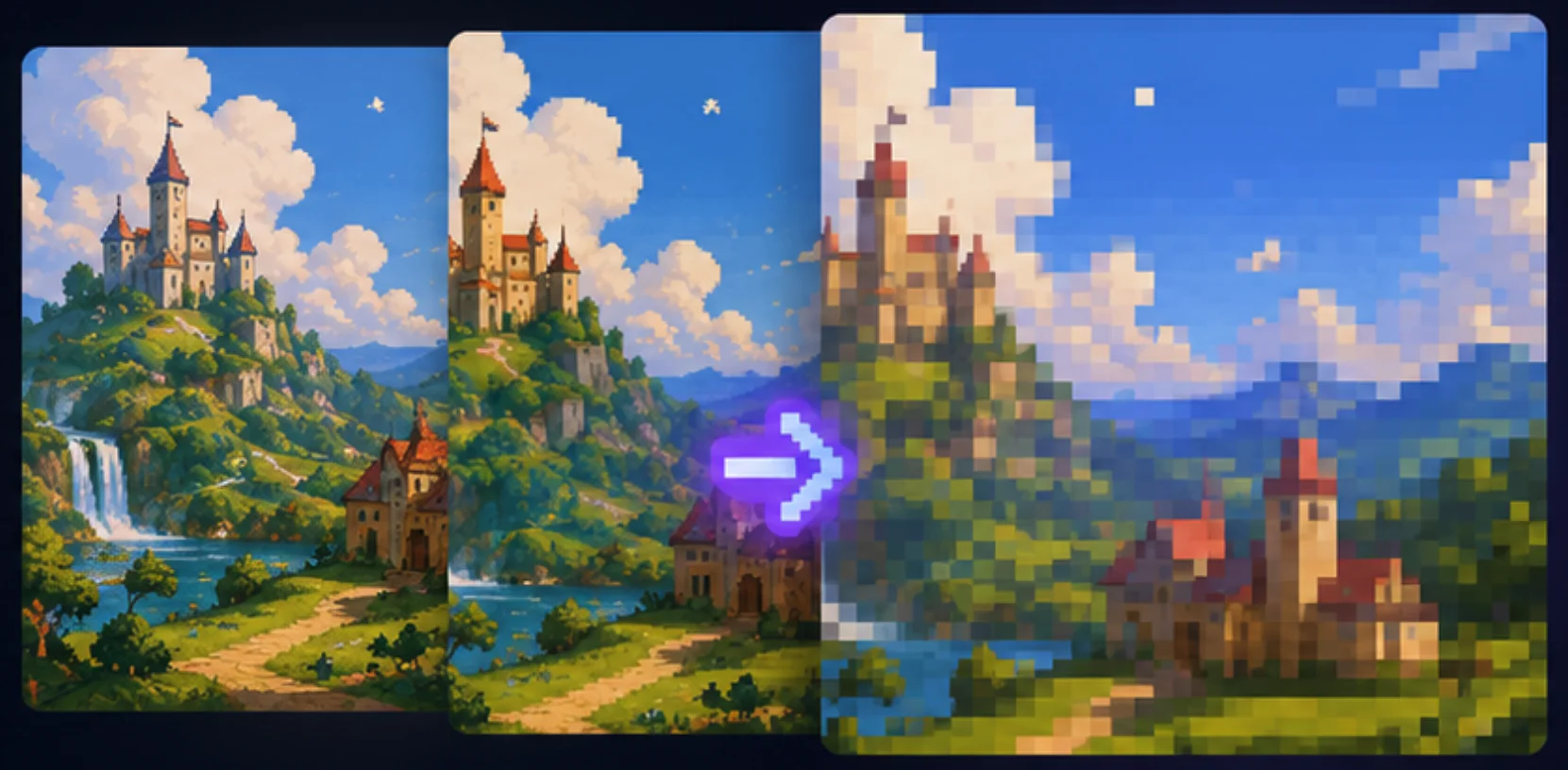
Convert image to pixel art for scenery tests, item icons, tile ideas, and character portrait references before polishing the artwork in a sprite editor.
Turn a face, mascot, logo draft, or simple drawing into a compact photo to pixel art avatar for social profiles and community visuals.
Compare colors, contrast, and dithering choices so each image to pixel art result has a clearer style before you download it.
Features
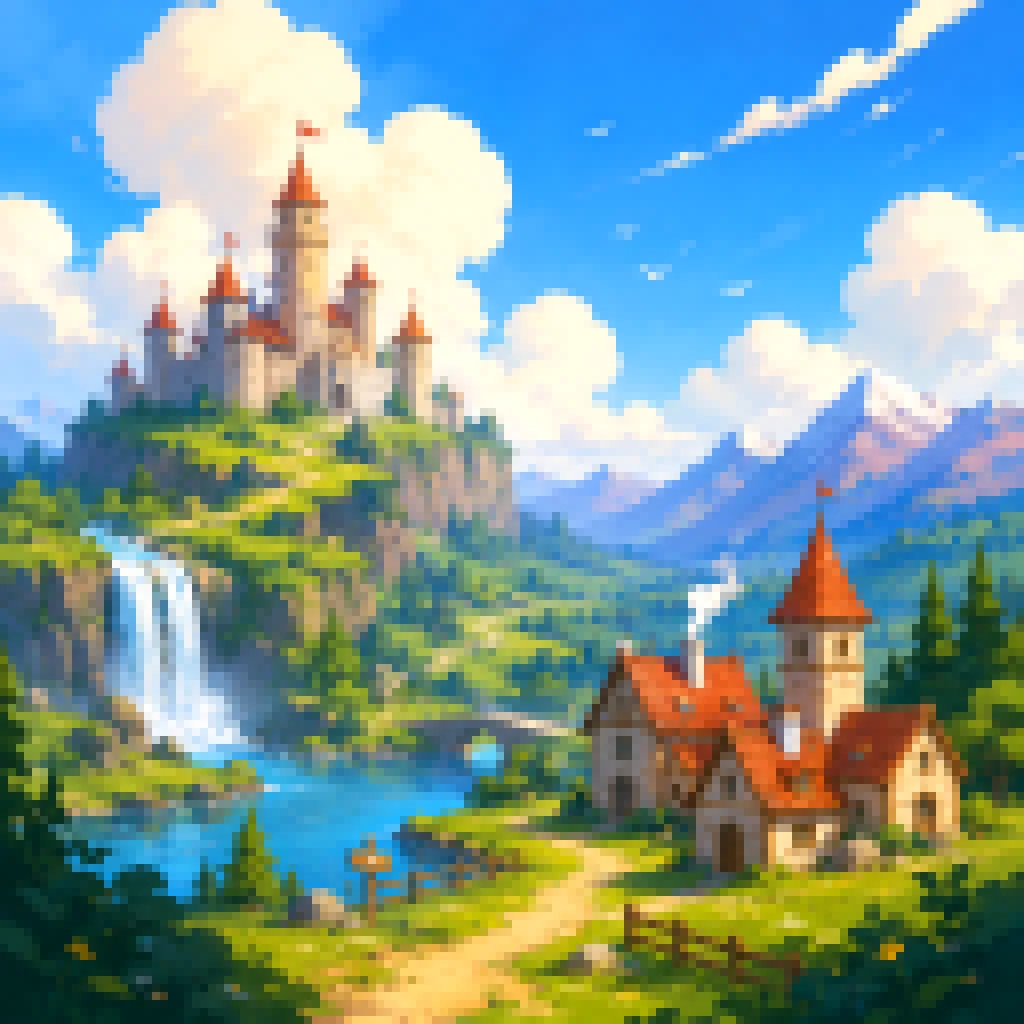
General mode reduces the image into larger pixel blocks while preserving source colors. Use it to convert image to pixel art, compare block sizes, and decide how much detail the final retro image should keep.
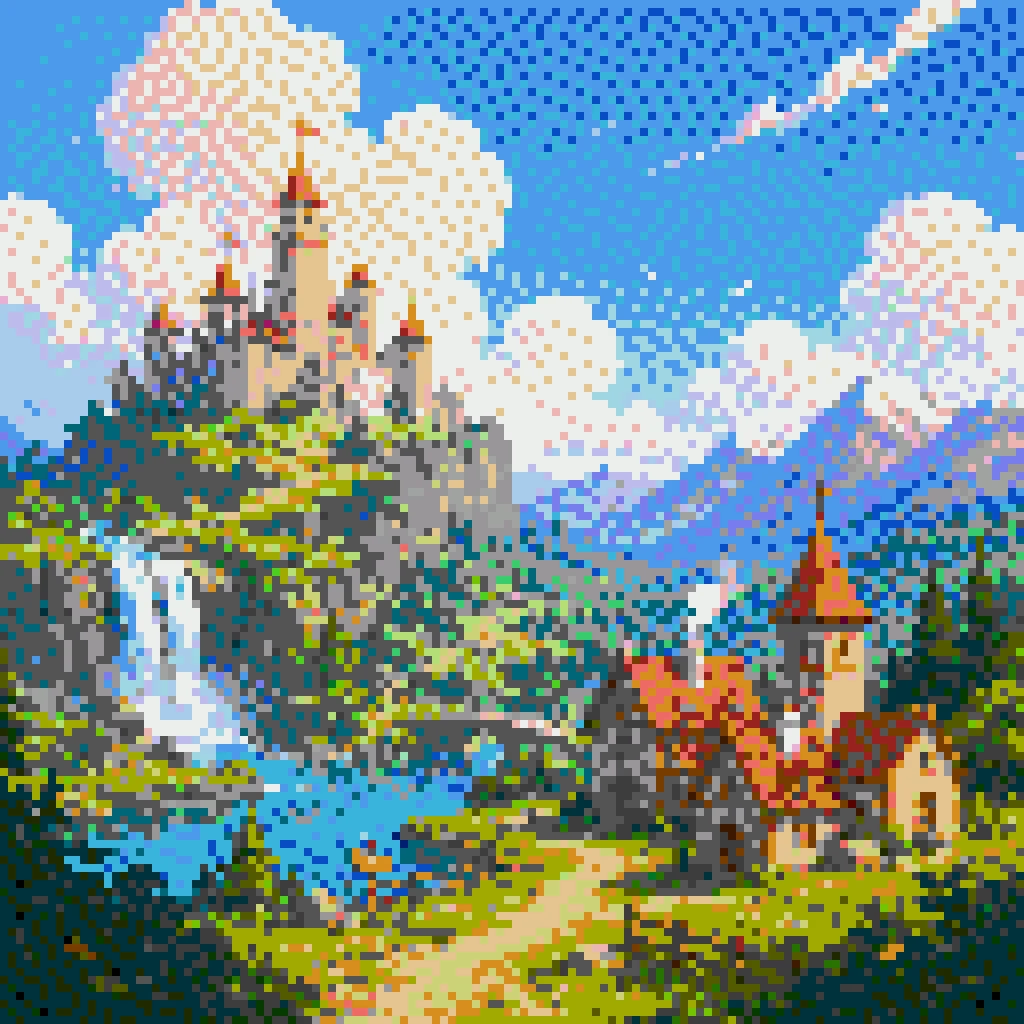
Palette mode creates a more classic retro workflow. Limit colors, adjust contrast and saturation, then add dithering when a photo to pixel art result needs cleaner shadows, softer gradients, or a more deliberate color style.
Quickstart
Choose a PNG, JPG, WebP, or GIF. The conversion runs locally in your browser, keeping the source file on your device while you test the preview.
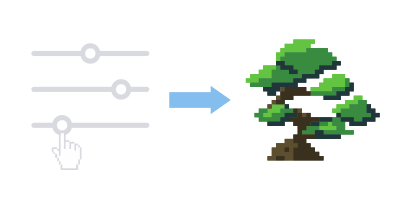
Use pixel block size to control abstraction, then refine contrast, brightness, and saturation. When the first preview feels too flat, switch to palette mode for stronger color decisions.

Review the before-and-after preview and download the finished pixel art at a small size or the original image size. Enable the grid only when you want a block reference for editing or craft planning.
Tips
A clear source image helps image to pixel art conversion simplify stronger shapes. Use these guidelines when the output looks noisy or overloaded.
Photos with a strong silhouette, readable lighting, and one main subject usually convert better. Busy backgrounds, small text, blur, and low-contrast areas can turn into noise when you convert image to pixel art because the tool must simplify many details into blocks.
Larger pixel blocks create a more abstract retro feel for icons, rough concepts, and game references. Smaller blocks preserve more information for landscapes, portraits, buildings, and product images. If the preview feels messy, increase the block size; if the subject disappears, reduce it.
Palette mode helps control color when a photo to pixel art conversion has too many similar tones. Adjust contrast and saturation first, then use dithering for shadows, gradients, and soft transitions that need texture instead of flat color bands.
Tip
Small tweaks in source image, pixel size, palette, and contrast can dramatically improve the final result.
FAQ
Answers about privacy, file types, settings, and downloads for this free image to pixel art converter.
Start with a clear source image, use the default settings for a quick preview, then adjust pixel block size. Palette mode is useful when the output needs fewer colors or a more intentional retro style.
Yes. Upload a photo, illustration, logo sketch, or generated image. A photo to pixel art result works best when the subject is clear and the background is simple.
Yes. The conversion runs in your browser, and your image is not uploaded to our servers. You should still make sure you have permission to use the source image.
Use larger blocks for a bolder retro look and smaller blocks when the image needs more detail. If the preview looks noisy, increase the block size. If the subject loses important shape, decrease it.
Yes. After the preview looks right, download the result at a compact size or at the original image dimensions, with or without a grid overlay.