Game Asset Concepts
Preview character portraits, tile ideas, scenery, and item icons before polishing the final artwork in an editor.
Upload a photo for an image to pixel art with grid preview you can inspect block by block.
Grid Workbench
Drag or drop an image here, or click to select one
Your image will be processed in your browser and will not be uploaded to any server.
Use a visible grid when you need cleaner references for crafts, icons, sprites, or pattern planning.
The image to pixel art converter with grid runs locally, so your source file stays on your device.
Open the page, upload an image, and review the pixel art grid from image input in the live preview.
Examples
Use Cases
Pixel Art Generator helps you convert photos, illustrations, and reference images into a retro pixel-style look right in your browser.
Adjust pixel block size, palette mode, brightness, contrast, saturation, and dithering to test different visual directions. Create a pixel art version in seconds, then download it with or without a grid for further editing. Different source images respond differently to pixel size and palette settings, so small adjustments can create noticeably different grid-ready pixel art styles.
Fast, Private, Free
All processing happens in your browser. No signup. No limits.
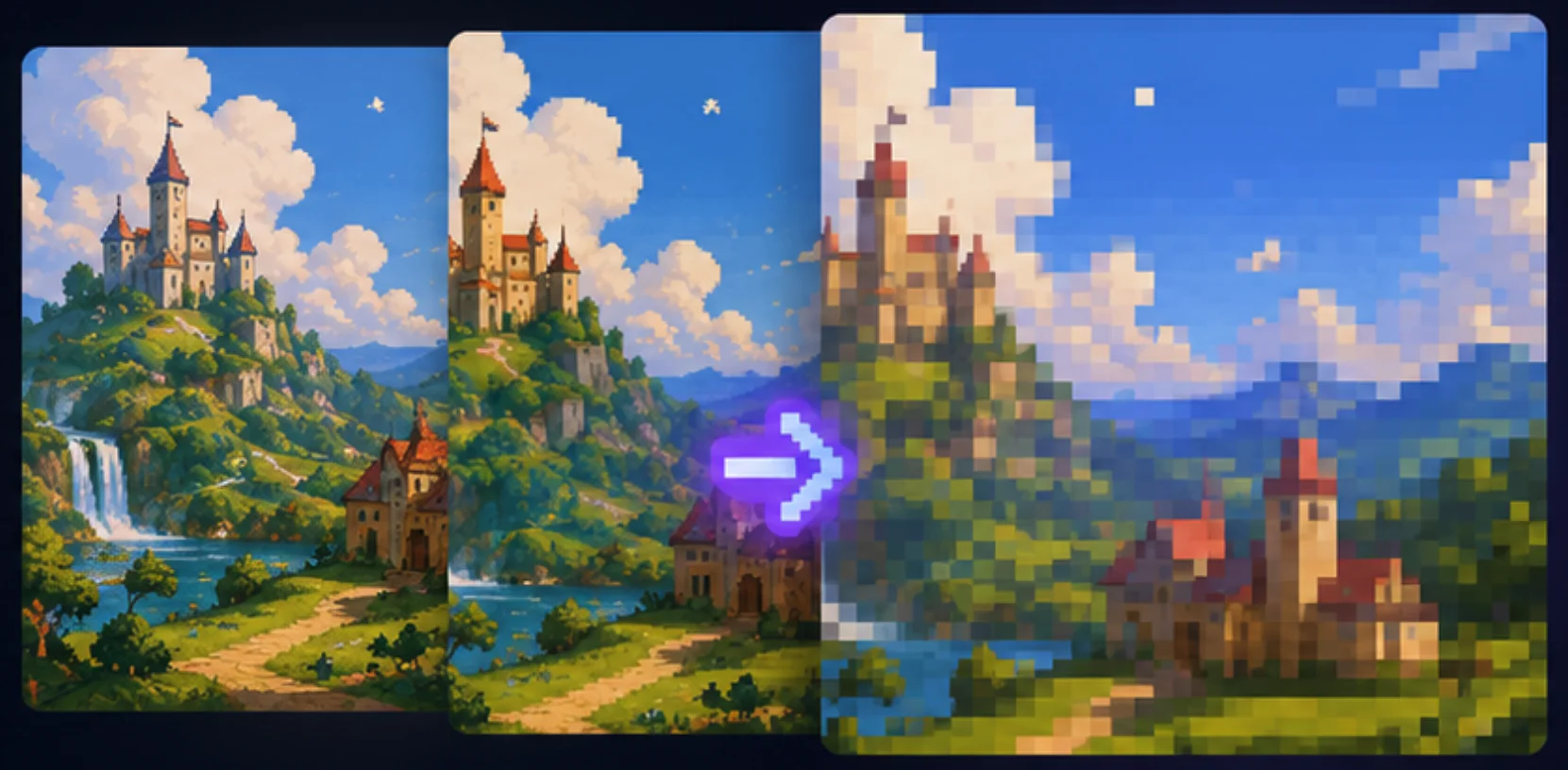
Preview character portraits, tile ideas, scenery, and item icons before polishing the final artwork in an editor.
Convert a face, logo draft, or simple illustration into a compact retro image for avatars and social visuals.
Compare colors, contrast, and dithering choices so your next pixel art generator result has a clearer visual direction.
Features
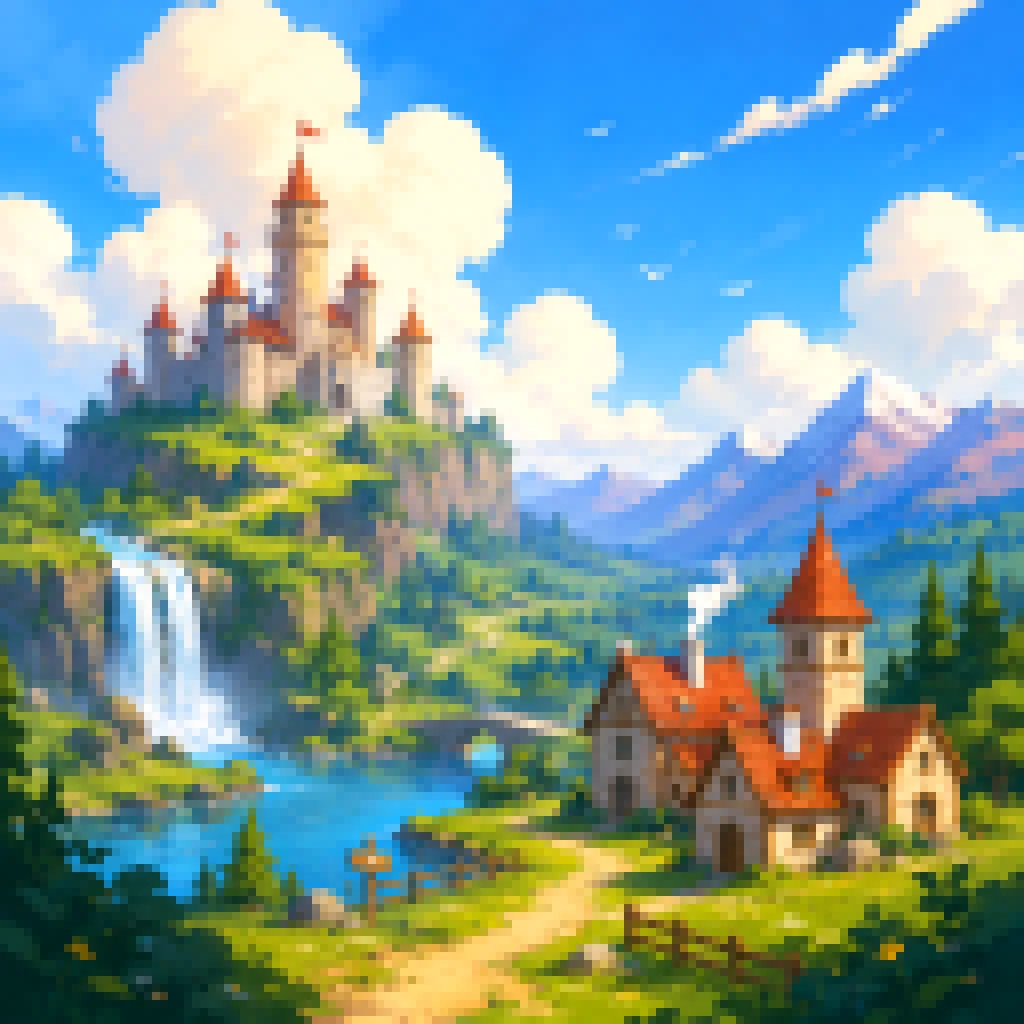
General mode starts with Show Grid enabled and a 16px pixel block size. Use image to pixel art with grid previews to compare block boundaries and decide whether the subject still reads clearly.
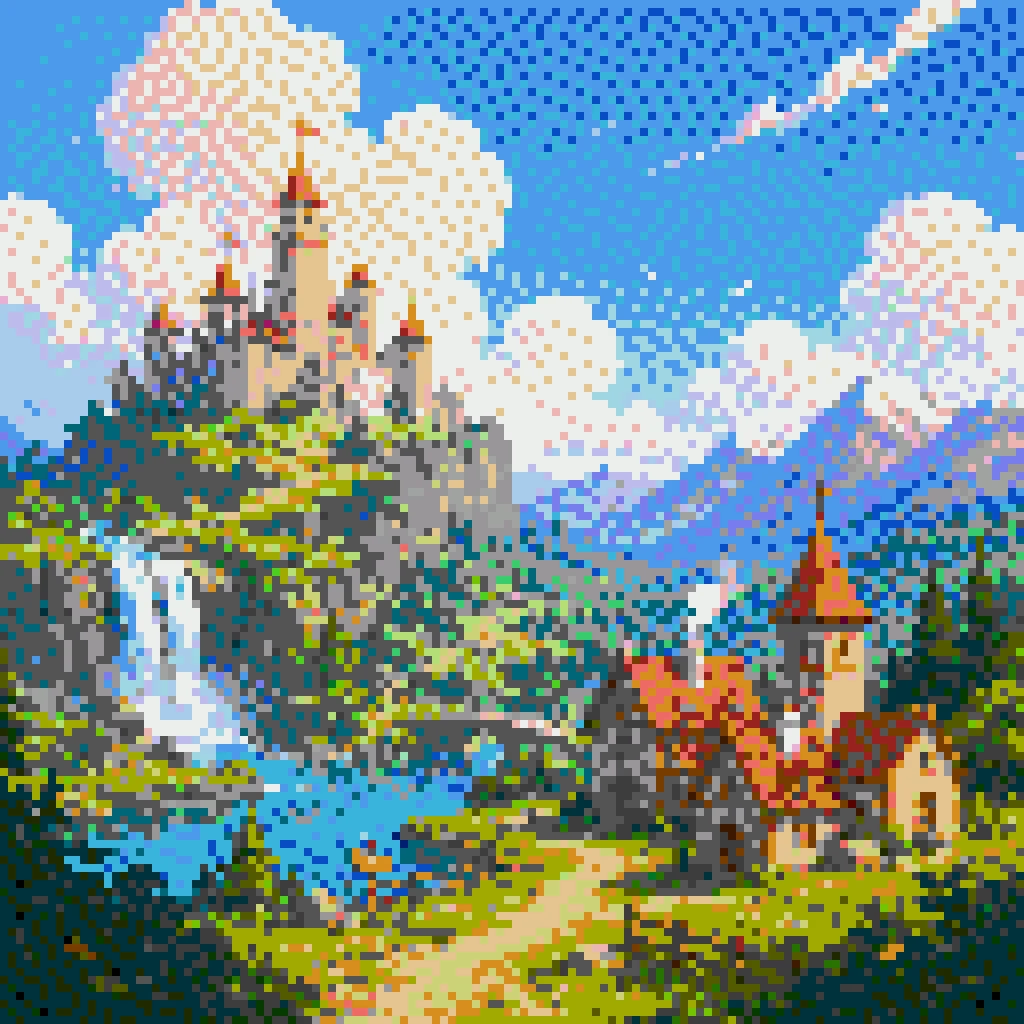
Palette mode helps when you want a tighter retro style. Limit colors, apply dithering, and keep the grid visible while refining icons, game assets, portraits, or craft references.
Quickstart
Choose a PNG, JPG, WebP, or GIF. The conversion runs locally in your browser, so the source file stays on your device.
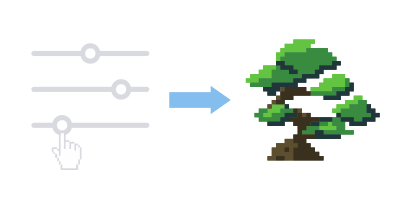
Start from the default 16px pixel block size, then adjust the slider if the image to pixel art with grid preview needs more detail or stronger abstraction.

Export the result with the grid overlay when you need a reference guide, or download a clean version when the grid is only for preview.
Tips
A stronger source image makes an image to pixel art with grid preview easier to inspect. Use these tips when the grid looks noisy, cramped, or hard to read.
Choose images with one clear subject, a readable outline, and strong contrast between important areas. A photo to pixel art grid preview can lose clarity when the background is busy, the subject is tiny, or every part of the image has the same level of detail.
Use larger blocks when you want a simpler pixel art grid from image input for crafts, icons, or pattern planning. Use smaller blocks when faces, buildings, scenery, or product shapes need more information. If the grid feels cluttered, increase the block size; if the subject disappears, reduce it.
Palette mode helps an image to pixel art converter with grid keep colors controlled while the visible blocks stay useful. Adjust contrast and saturation before exporting, then add dithering when shadows, gradients, or soft color transitions need texture instead of flat color bands.
Tip
Small tweaks in source image, pixel size, and palette can dramatically improve your final pixel art grid.
FAQ
Answers about grid previews, downloads, and settings for this image to pixel art converter with grid.
It is useful when you need visible block boundaries for planning icons, cross-stitch references, bead art, sprites, or other projects where each pixel block matters.
Yes. Keep Show Grid enabled and choose a download option that includes the grid overlay. You can also download without the grid if you only used it for preview.
This page starts at 16px because larger blocks make the grid easier to inspect. Use a smaller value when the subject loses important details.
Yes. You can upload a photo or illustration, preview the pixel grid in your browser, and export the converted pixel art result.
No. The conversion runs in your browser, so your image does not need to leave your device for this workflow.